

Most merchants can be live in minutes.
This guide takes you from nothing to a live GOAT Flow merchant account: your products findable and payable by AI agents and human buyers alike, with receipts nobody can reverse. If you take the QuickPay path, there's no coding involved at any point - you configure everything in the portal, and your checkout page comes ready to place alongside your existing website or app.
It follows the official five-step onboarding path: register, configure receiving, prepare access, integrate, then test and launch.
You'll work in the Merchant Portal:
Mainnet: flow-merchant.goat.network
Testnet3 (for testing): flow-merchant.testnet3.goat.network
Treat these as two separate worlds. Keep credentials, wallets, and configuration separate between them, and never copy test settings into production.
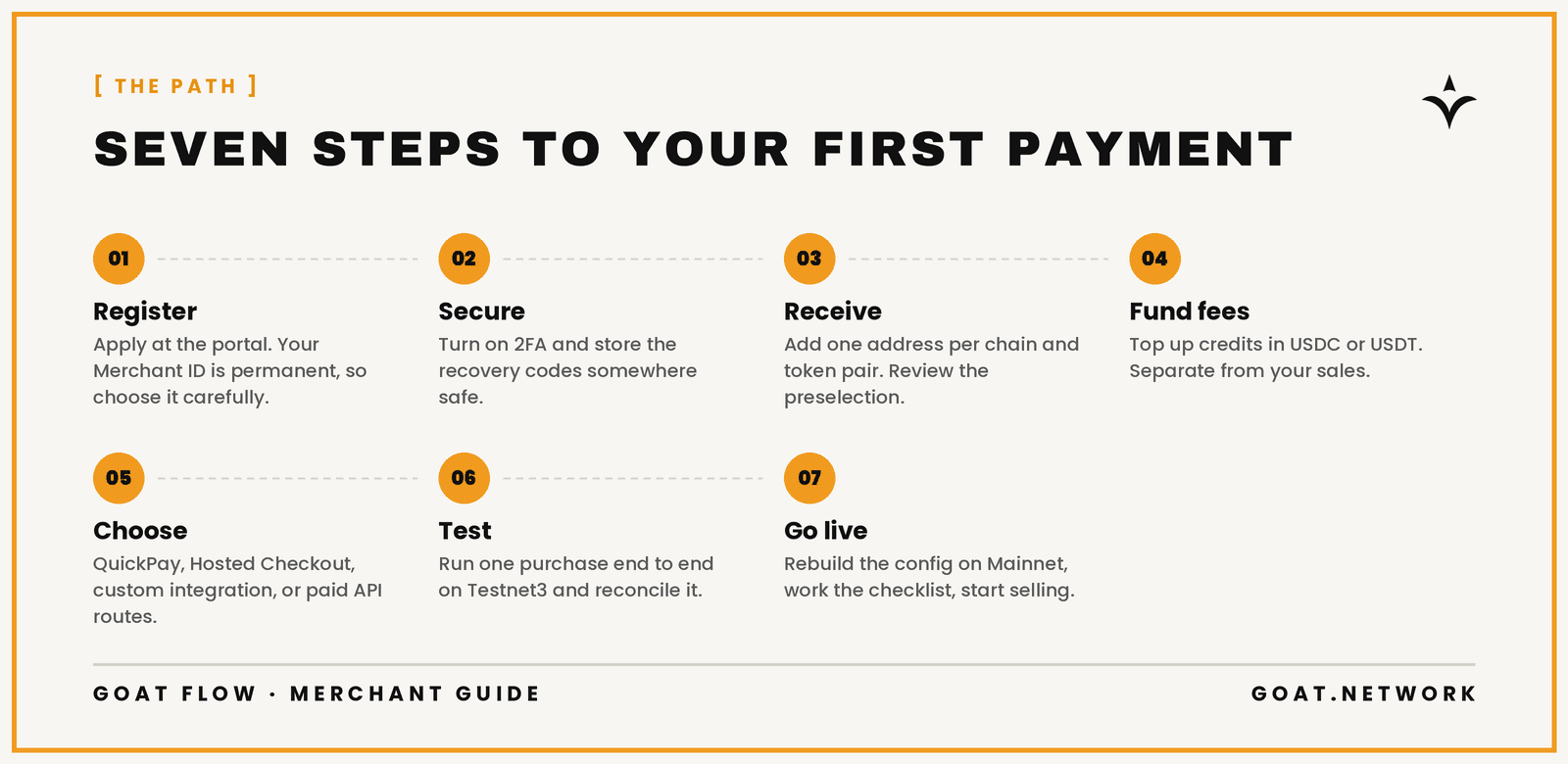
Step 1: Register your merchant account
Open the Merchant Portal and select Apply. The form asks for four things:
Merchant ID - your unique identifier. Letters, numbers, hyphens, and underscores only. Choose carefully: it cannot be changed after registration.
Business name - your display name, shown to buyers. This one you can change later.
Work email - the owner login.
Password - 8 to 72 characters.
Submit the application. It goes into review, and you won't be able to sign in until it's approved. Once you're approved and activated, sign in with the email and password you registered.
Step 2: Secure the account
Go to Account & Security, then Security and enable two-factor authentication with an authenticator app. Store the recovery codes somewhere safe - they're your way back in if you lose the authenticator. Never share or screenshot the enrollment QR code or recovery codes.
If you later lose both your password and your authenticator, email contact@goat.network.
Step 3: Add your receiving addresses
This is where you tell GOAT Flow where your money goes. In DIRECT mode - the standard setup - buyers pay from their wallet straight to yours. GOAT Flow verifies the payment on-chain; it never holds your funds.
Open Payment Setup, then Receiving Tokens & Addresses and click Add address. Each row is one chain and token pair (for example, USDC on GOAT Network) mapped to one of your wallet addresses. Add a row for every chain and token you want to accept. The available options come from the live deployment, so what you see in the portal is what's actually supported.
One caution: the onboarding picker can preselect every available row. Review the selection before confirming so you don't accidentally assign one address to every chain and token.
Step 4: Top up your fee balance
GOAT Flow charges service fees from a prepaid credit balance - this is completely separate from your sales, which go directly to your wallet. Open Billing, then Fee Top-up, connect a wallet, and add credits in USDC or USDT. If the balance runs out, new orders and sessions can stop, so fund it before launch and keep an eye on Billing, then Fee Balance. The active per-chain fees are shown in the portal's fee configuration table.
Step 5: Choose how you'll sell
Pick the surface that fits your business. You can enable more than one.
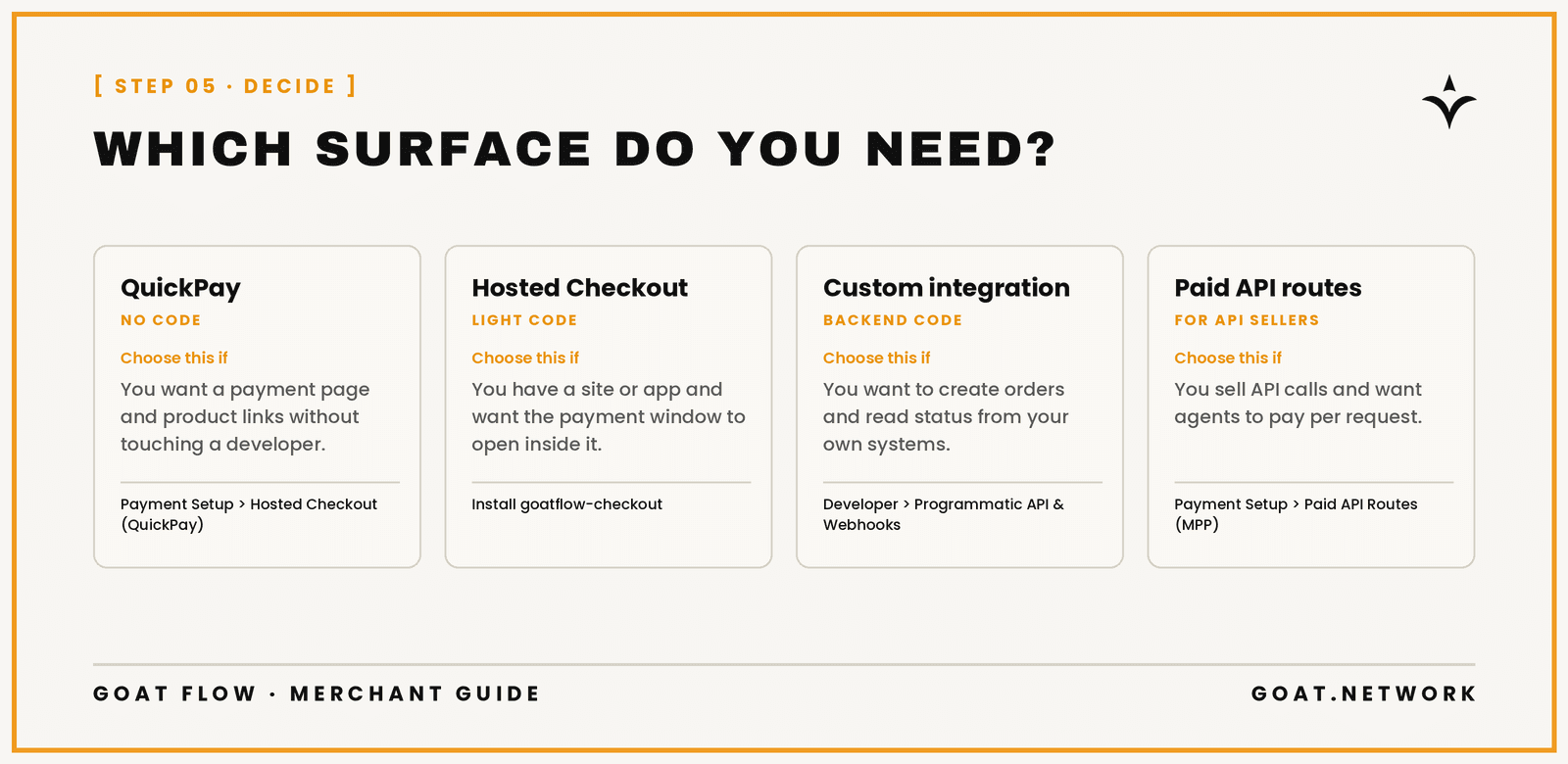
QuickPay page and products (no code). Under Payment Setup, then Hosted Checkout (QuickPay), set your display name, description, and logo, then create fixed-price products with a stable product key, a name, and a decimal price. You get a public payment page link plus two machine-readable links - agent.md and manifest.json - that let AI agents discover and buy your products. Copy these links from the portal rather than typing them.
Hosted Checkout on your site (light code). Your developer drops in the goatflow-checkout package to open your products or dynamic carts in a hosted payment window, with no merchant credentials in the browser.
Custom integration (backend code). Create API keys under Developer, then Programmatic API & Webhooks and use the server SDKs to create orders and check status. The API secret is shown exactly once - store it server-side immediately, and never put it in frontend code.
Paid API routes (for API sellers). Under Payment Setup, then Paid API Routes (MPP), protect specific API endpoints with a fixed price so agents can pay per request and present a signed Payment-Receipt to access them.
If you want order updates pushed to your systems, add up to three HTTPS webhooks on the Developer page. The webhook secret is also shown only once, so save it and use it to verify incoming requests.
Step 6: Test everything on Testnet3

Before real money moves, run the whole journey on Testnet3. Register a test merchant at the Testnet3 portal, configure a receiving address, get test gas from the faucet at bridge.testnet3.goat.network/faucet (gas on GOAT Network is BTC), and complete one purchase end to end as a buyer.
Then confirm three things: the order shows as confirmed or invoiced under Payments, then Orders; the payment appears in Order Reconciliation with the right amount, token, chain, and transaction; and your fulfillment only triggers from a verified backend status or authenticated webhook, never just from a browser success message.
Step 7: Go live
Repeat your configuration on Mainnet from scratch - production URLs, production wallet addresses, production credentials - and run through the go-live checklist in the merchant guide: merchant approved and enabled, receiving addresses correct for every pair, API secrets backend-only, webhooks tested, fee balance funded. Then start selling.
Day-to-day operation
The Dashboard shows revenue and order stats at a glance. Orders gives you every transaction with full detail, Order Reconciliation gives your accountant matched, unpaid, and late payment reports with CSV export, and Audit Logs records every configuration change. Invite team members from Account & Security, then Team with single-use invite codes - members can see operations and billing but can't touch your setup.
Full reference: the Merchant Guide | Developer setup: the Flow Quick Start | Help: contact@goat.network | Overview: GOAT Flow Webpage


